Custom CMS · Editorial platform
A purpose-built editorial interface that lets teams edit content in context and move it through a clear publishing workflow.
Strata is a purpose-built editorial interface for content teams: the kind of tool a multi-property business ends up needing when a generic admin panel stops fitting the way its team works. Editors work on the page itself, every page moves through a clear four-step publishing workflow, and the depth of a serious platform stays out of the way until it is asked for. The interface is built as a working front end and shown on a multi-property hospitality site: the main flows respond to a click, and all names, numbers and texts in it are sample content.
- Type
- Custom CMS, editorial interface
- Domain
- Editorial software, multi-property hospitality
- Scope
- Content architecture · Product design · Editorial UX · Front-end development
- Content
- Sample content throughout
- Interface
- Open it in a new tab
Role and scope
- Product thinking: who edits, what they publish, and what a calm editorial workspace has to hide
- Content architecture: a content model and a four-step publishing workflow for a multi-property site
- Editorial UX and an interface design system: tokens, components, a light and a dark theme
- Front-end development: a working interface with eight modules, from the on-page editor to roles and access
- Sample content, procedural imagery, a guided demo mode and a motion film for presentations
Most content management systems show an editor the structure of the system: every field of every content type, in the order a developer defined them. A hotel group does not think that way. It thinks in pages and properties, in this week’s offer, in what is waiting for approval and in what a guest will see on a phone.
The risk with a tool like that is not that it lacks features. It is that occasional editors, such as the revenue manager changing a price or the chef adding a menu, are afraid of it, so the work becomes a queue for the two people who are not.
Strata starts from the opposite end: show the page, reveal the system only when it is asked for, and make the next correct action the most obvious thing on the screen.
A generic admin form (illustration)
Every field of every type, in the order a developer defined it.
Strata (illustration)
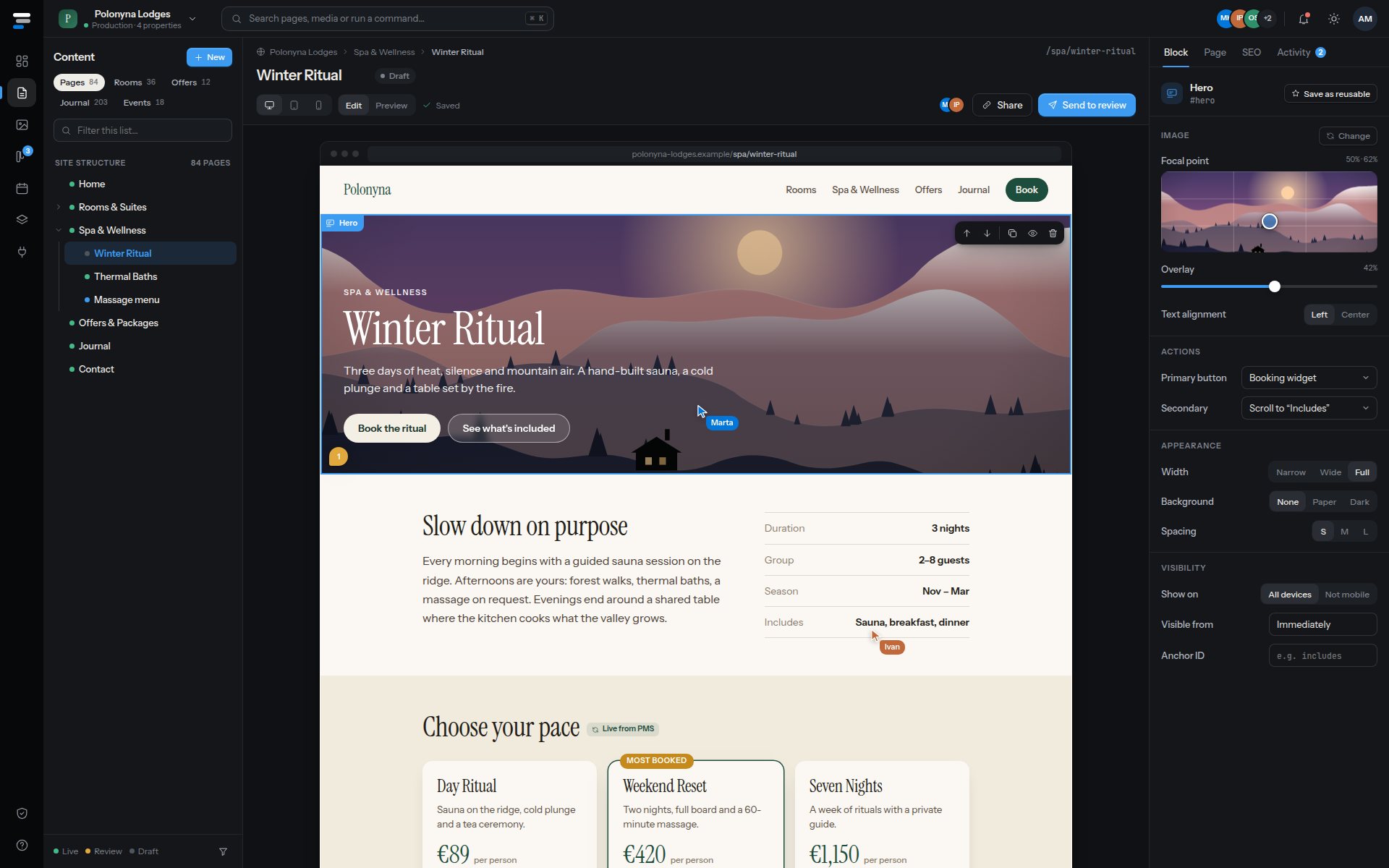
The page, one block selected, its few controls beside it.
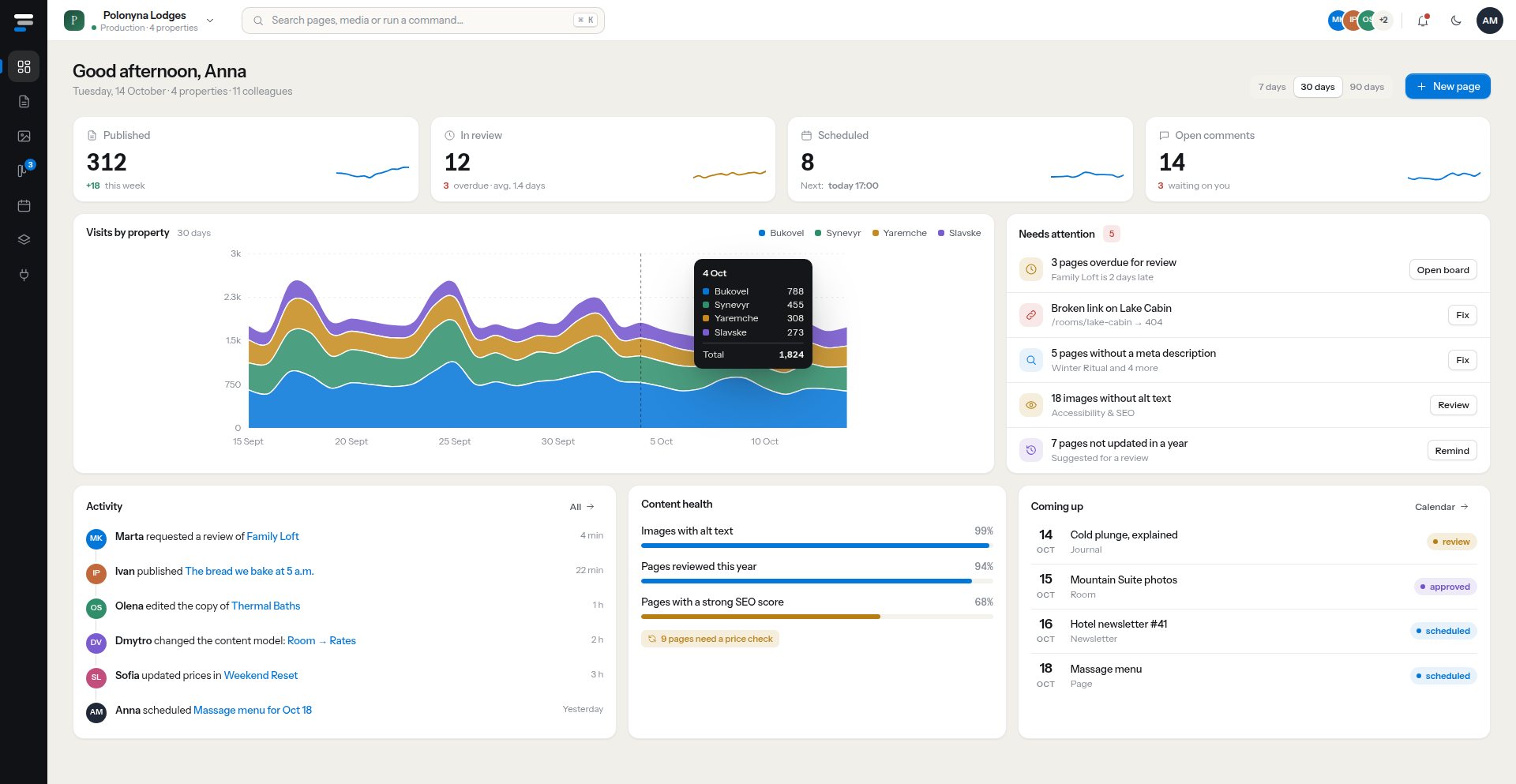
The workspace opens on what needs attention, not on a menu: pages overdue for review, a broken link, images without alt text, what goes live this week. The properties of a group share one content model, so a rate, a policy or a photograph is changed once and is right everywhere it appears.
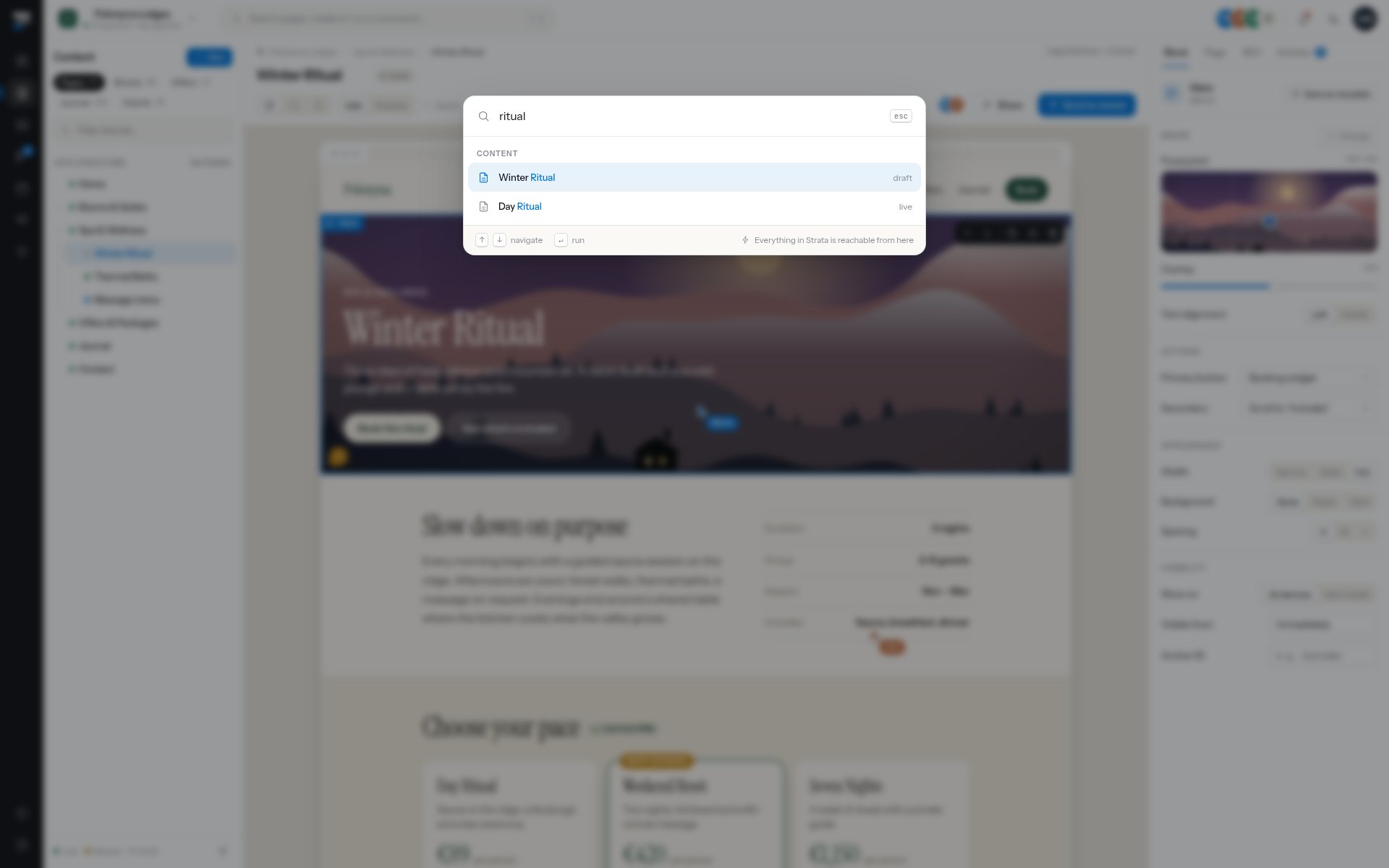
Eight modules sit in a slim rail (overview, content, media, workflow, calendar, content model, integrations, roles) and the command palette, ⌘K, reaches any of them, any page or any action without opening a menu.
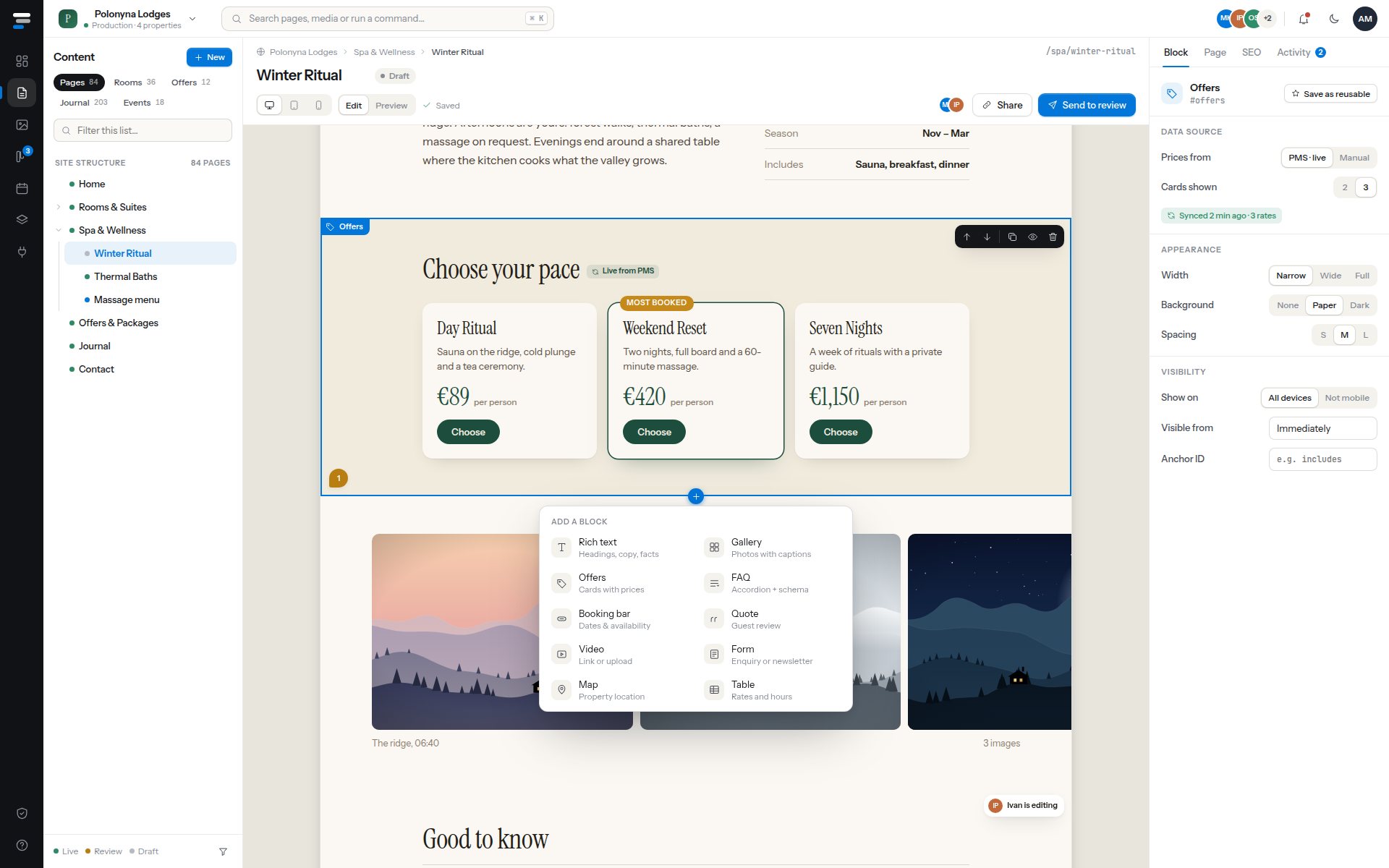
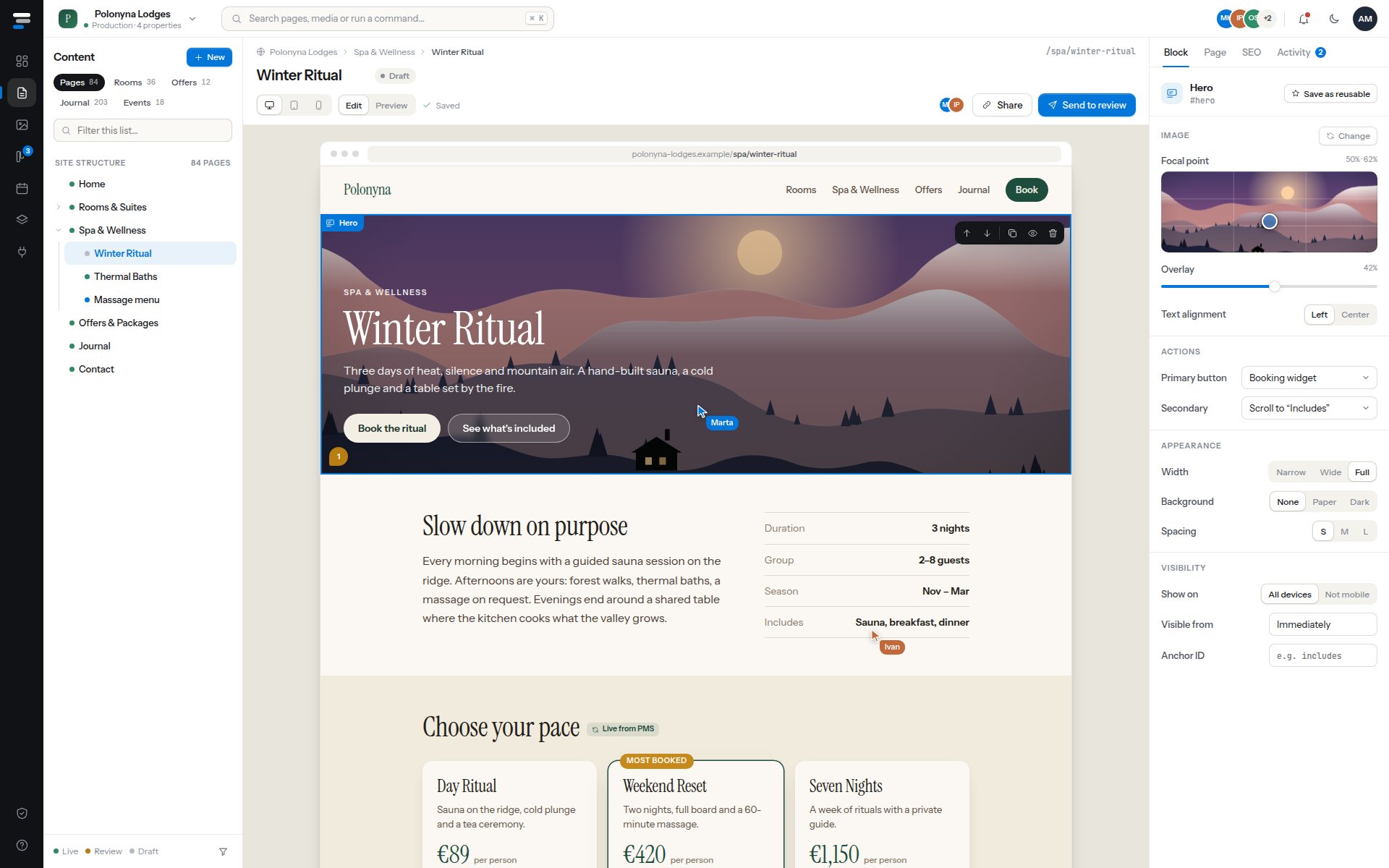
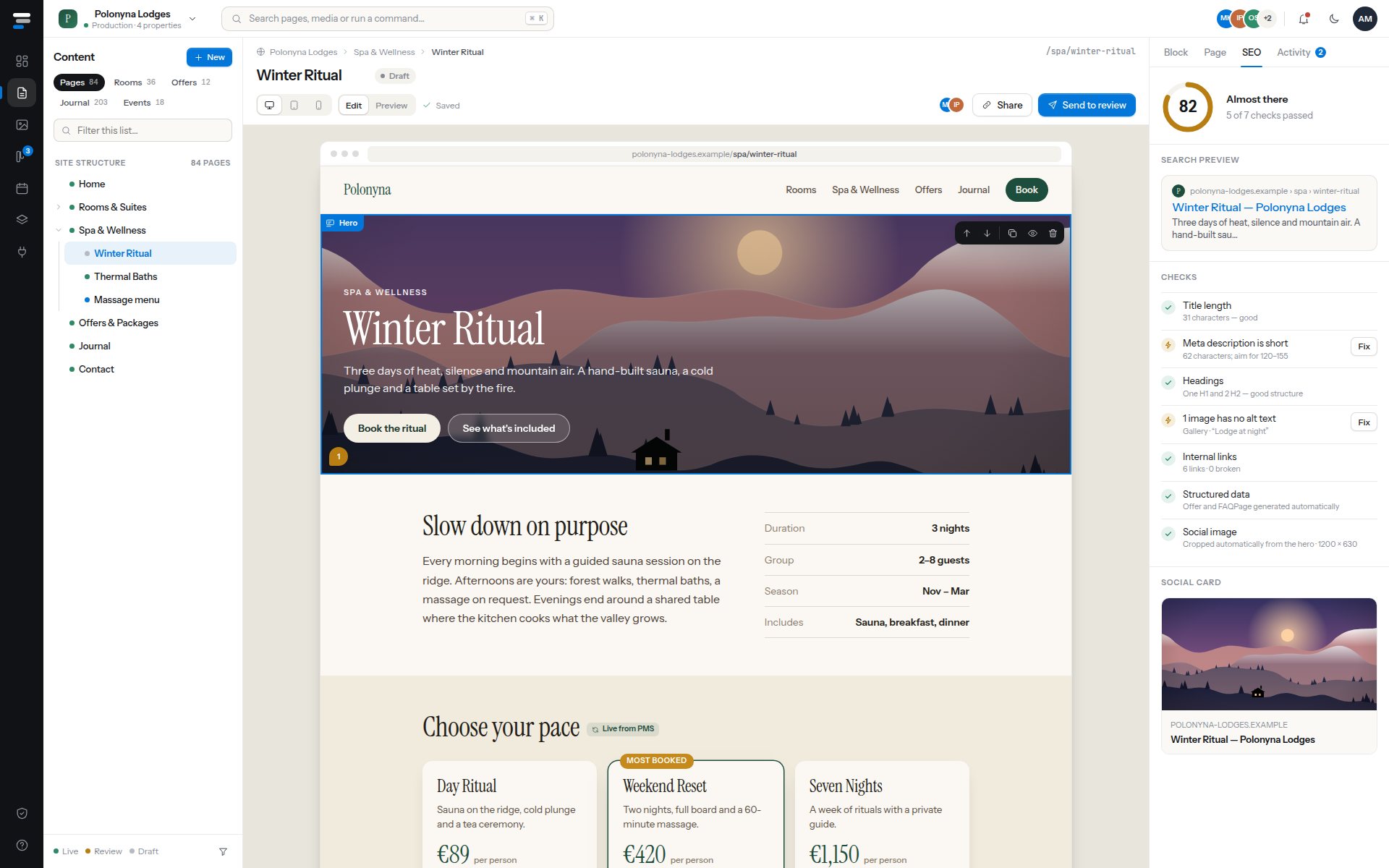
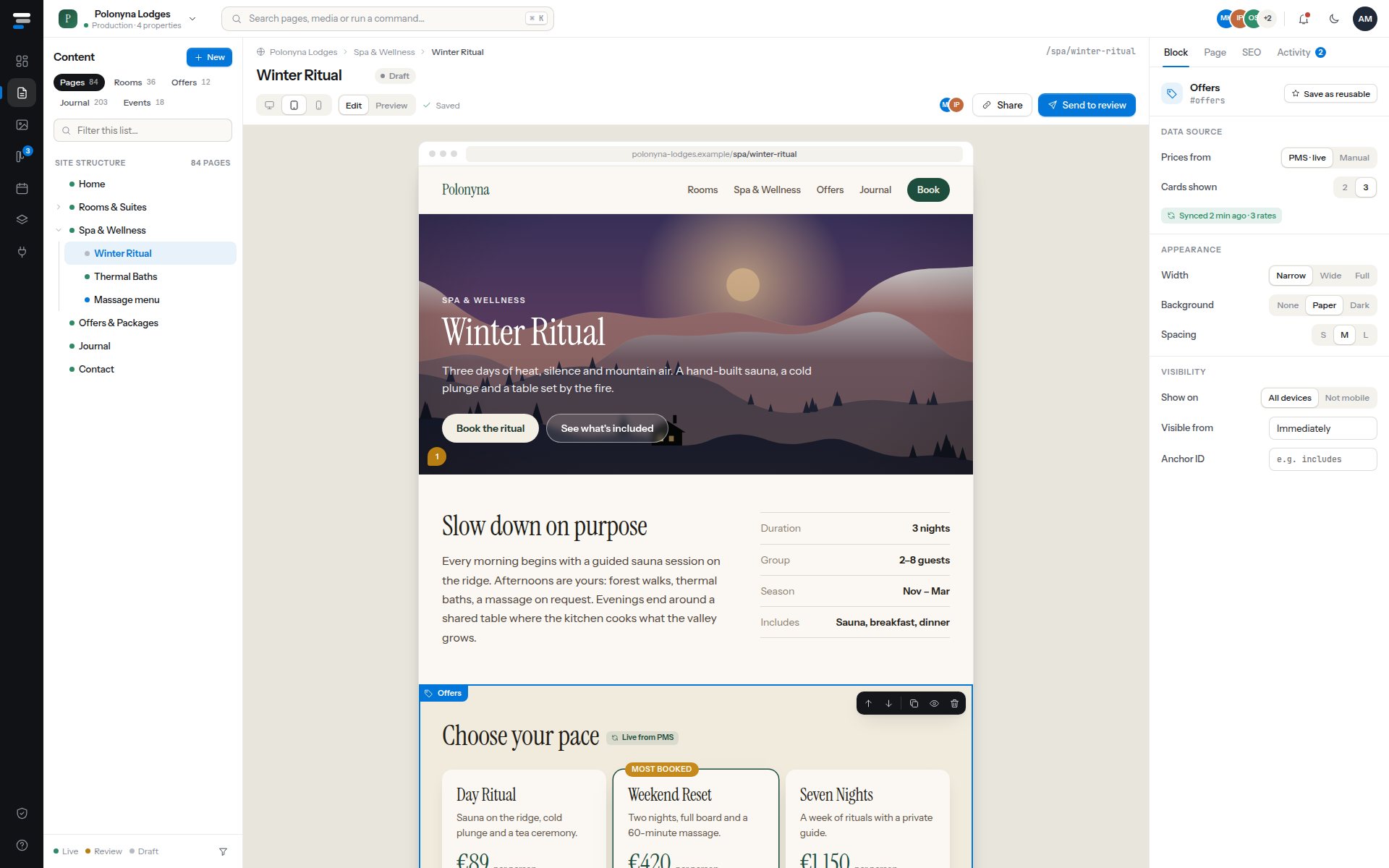
The editor is the page. Headlines, paragraphs and prices are edited where they appear, in the type the guest will read, and a small toolbar shows up only when text is selected. Blocks show their handles on hover, and the controls that belong to a block (a focal point and an overlay for a hero image, live prices or manual ones for an offer card) live in one inspector beside it.
Change something and it saves. The page title, the site tree and the search preview follow as you type; nothing asks for a save button.
- Inline editing with a selection toolbar
- Twelve block types, moved with one click and an animated settle
- A focal-point picker, overlay and alignment that change the page as you move them
- Colleagues’ cursors, and a lock on the block someone else is editing
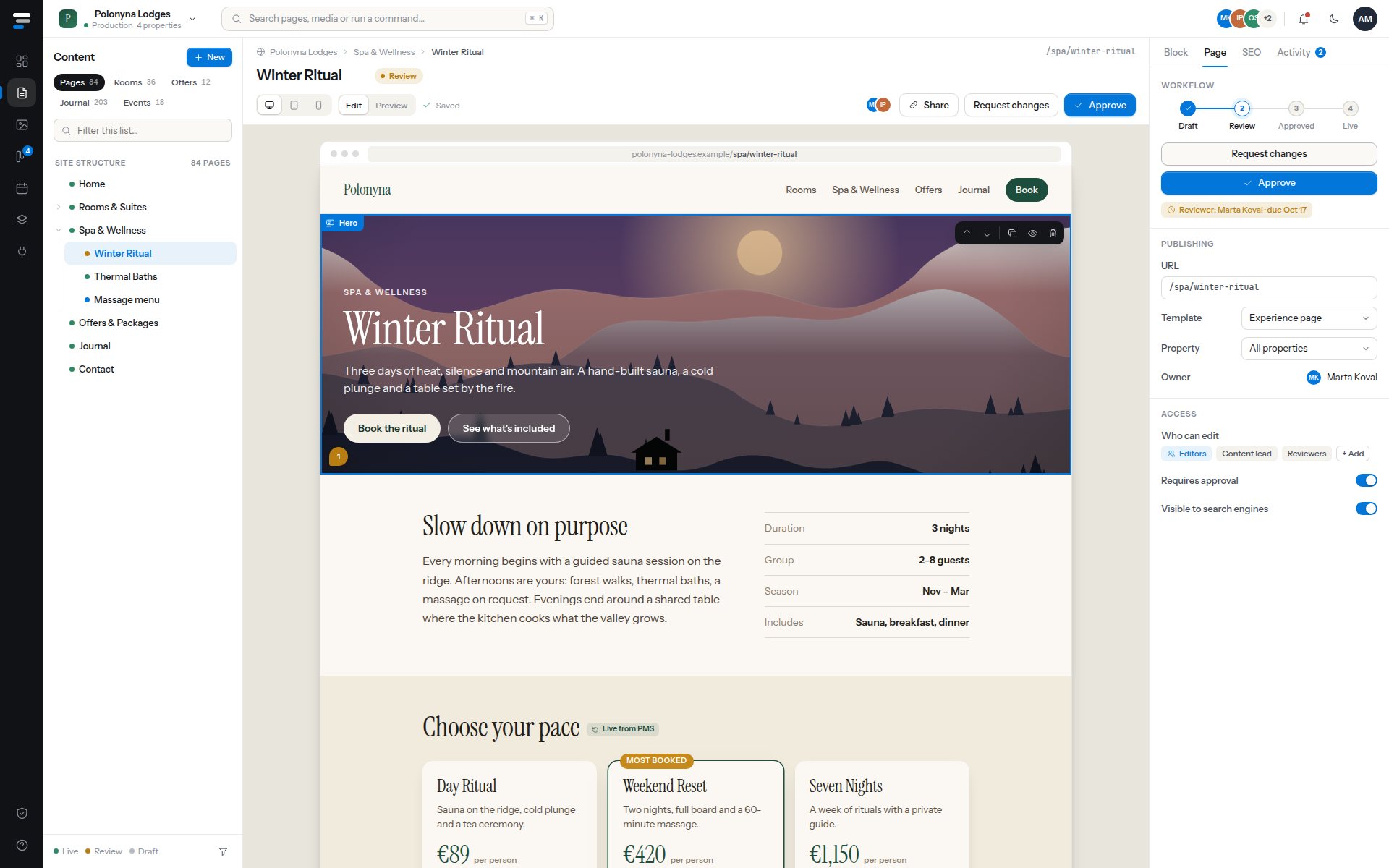
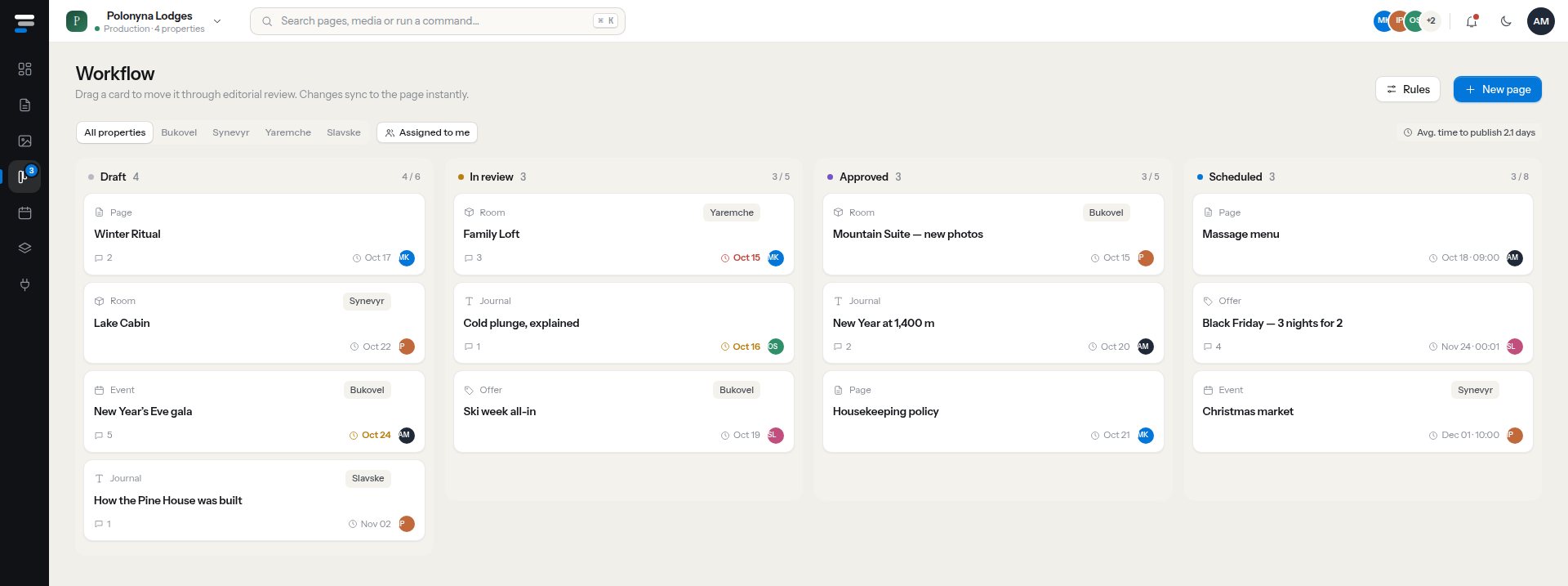
Every page moves through the same four steps (draft, in review, approved, live) and the interface only ever offers the next one. A reviewer sees Approve and Request changes; an editor sees Send to review. Scheduling, unpublishing and moving back are the same gesture in a different place.
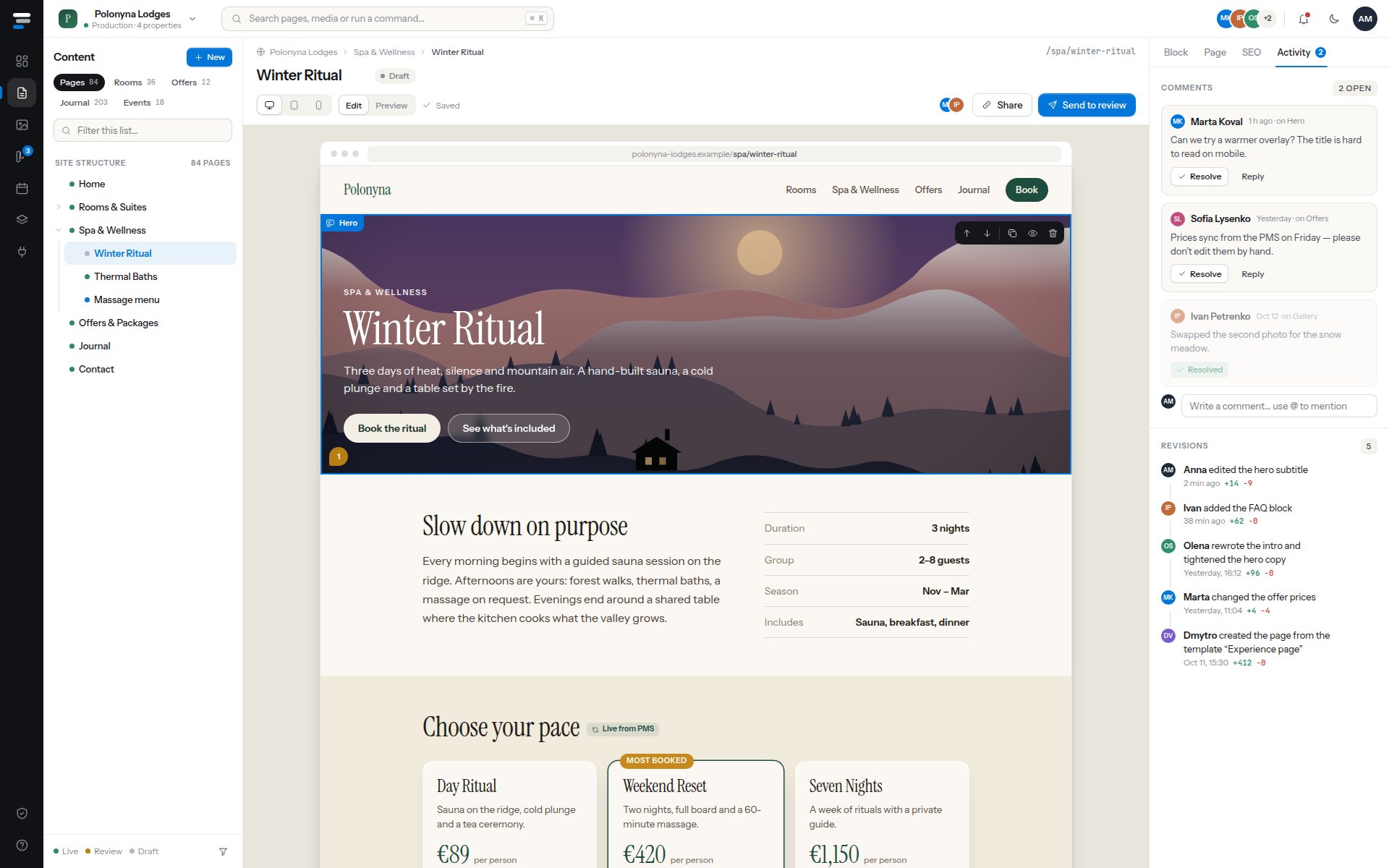
Beside the steps sits the evidence: a revision history that says what changed and who changed it, comments pinned to blocks, and a search-health panel that scores the page and fixes the easy problems, such as a short meta description or a missing alt text, with one click.
- DraftSend to reviewEditor
- In reviewApproveReviewer
- ApprovedPublish now or scheduleContent lead
- LiveUnpublishContent lead
The workflow board shows every item in flight, by property and by person, with a clock on anything late. Cards move by dragging, and the page behind a card changes status in the same moment.
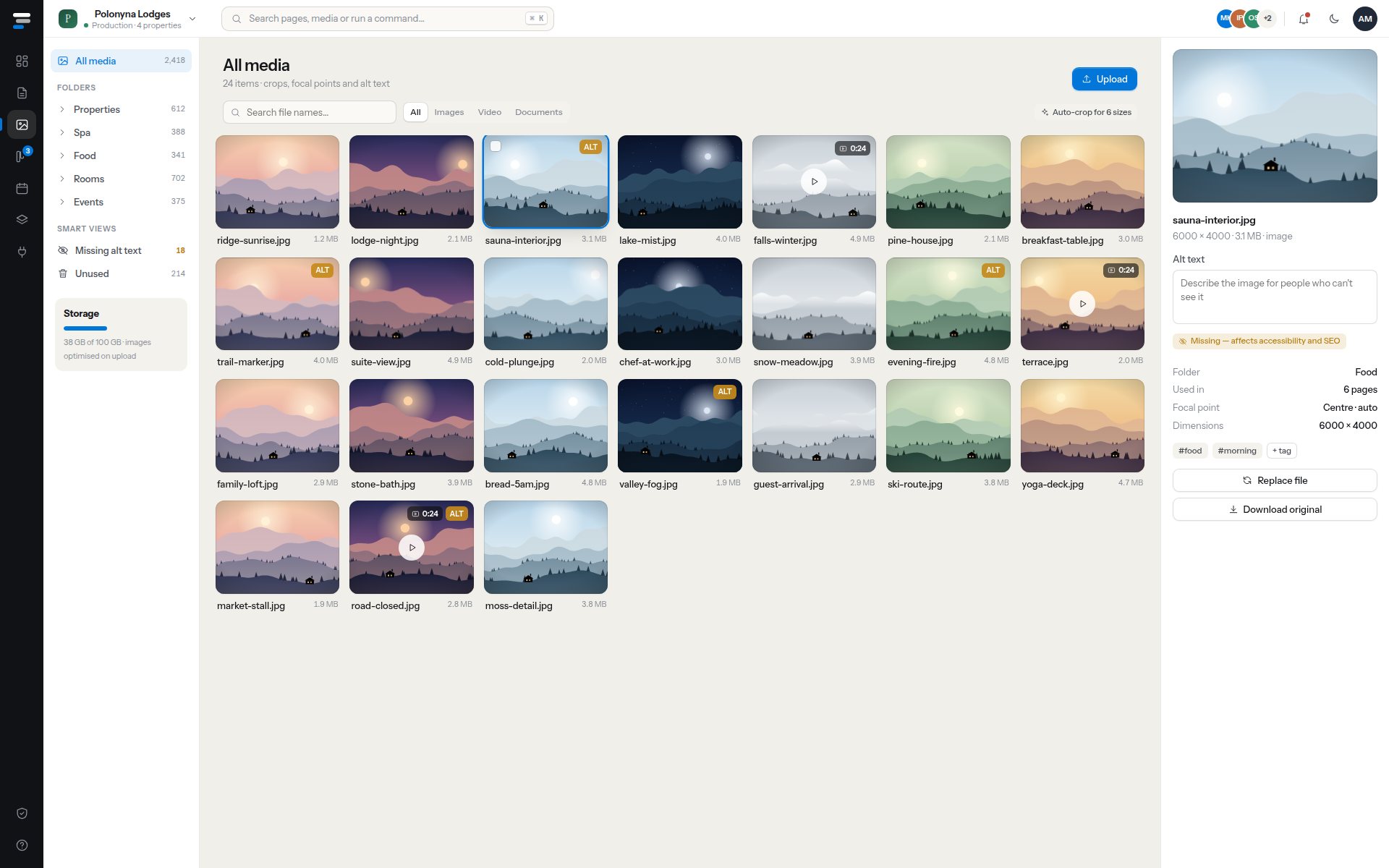
The media library works the same way: an item is selected once, its alt text, focal point and usage sit beside it, and a smart view lists everything that still has no description.
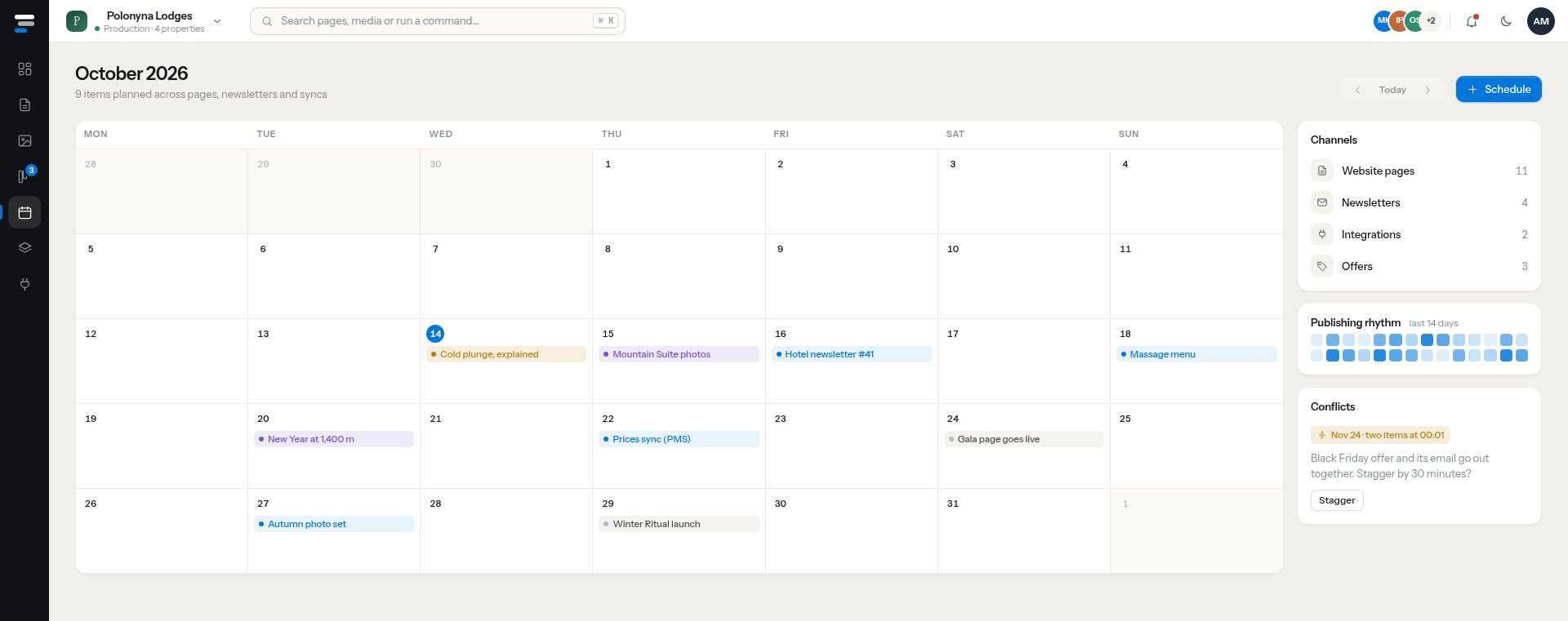
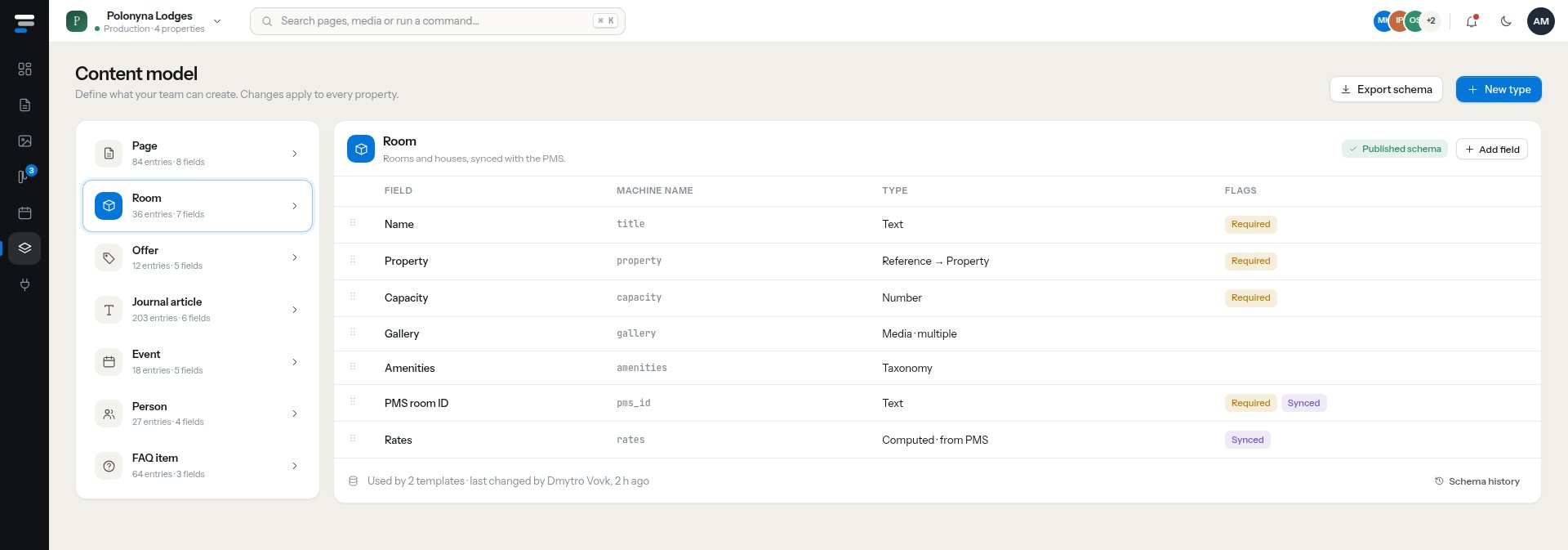
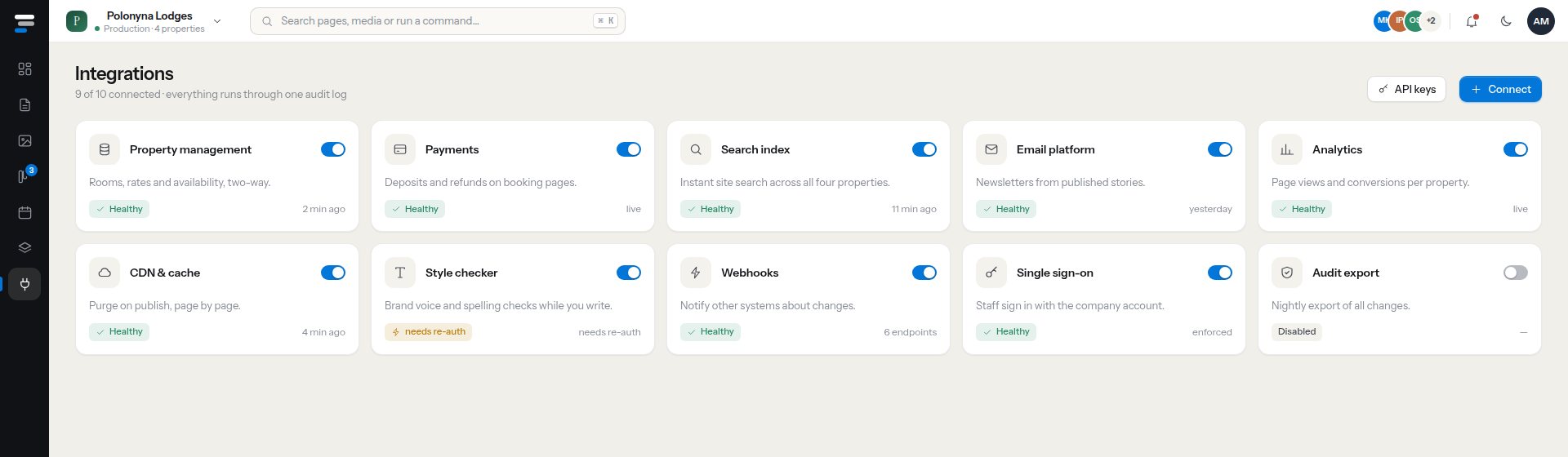
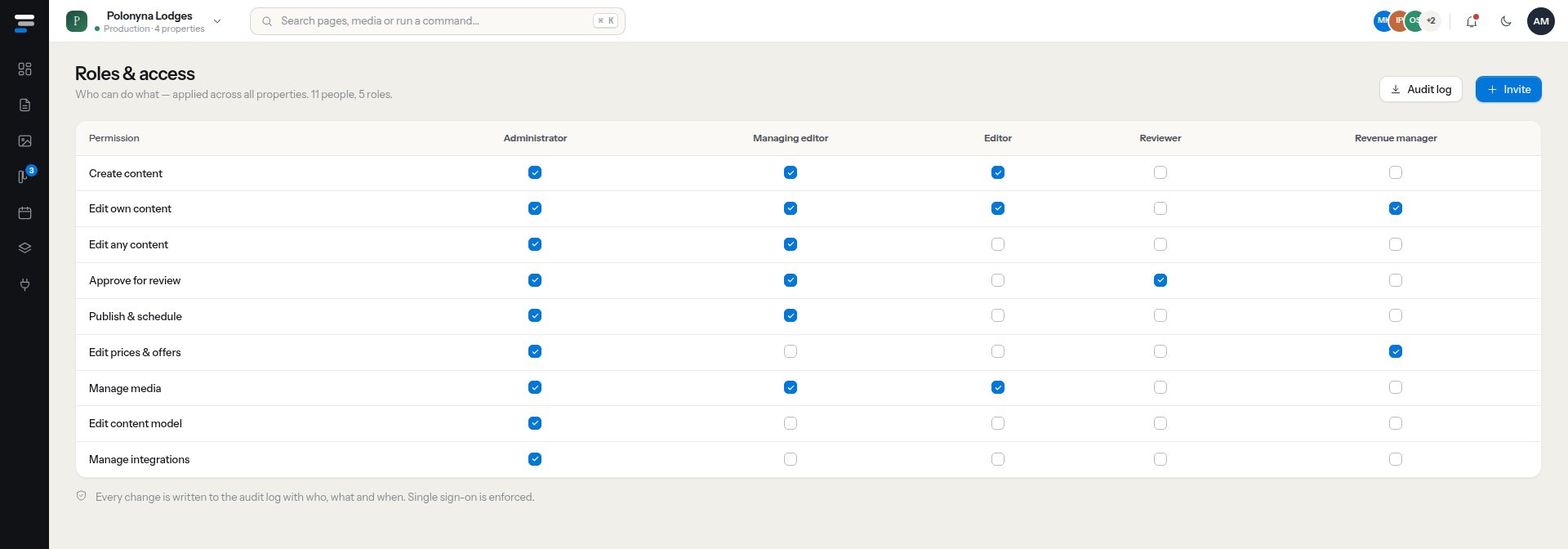
The content model is the backbone: it lists what an editor can create, and which fields are required or synced from another system. Around it sit the rest of the modules, there when they are needed and invisible when they are not. A calendar plans pages, offers and newsletters on one timeline and flags two items scheduled for the same minute. The integrations screen shows the status of each connector the site depends on, and roles and access is one table.
- Overviewattention list, visits by property, activity
- Contentsite tree, on-page editor, inspector
- Mediafolders, smart views, alt text, focal points
- Workflowa board with drag and drop
- Calendarone timeline for pages, offers and email
- Content modeltypes, fields and flags
- Integrationsconnector status with on-off switches
- Roles and accesswho can do what, in one table
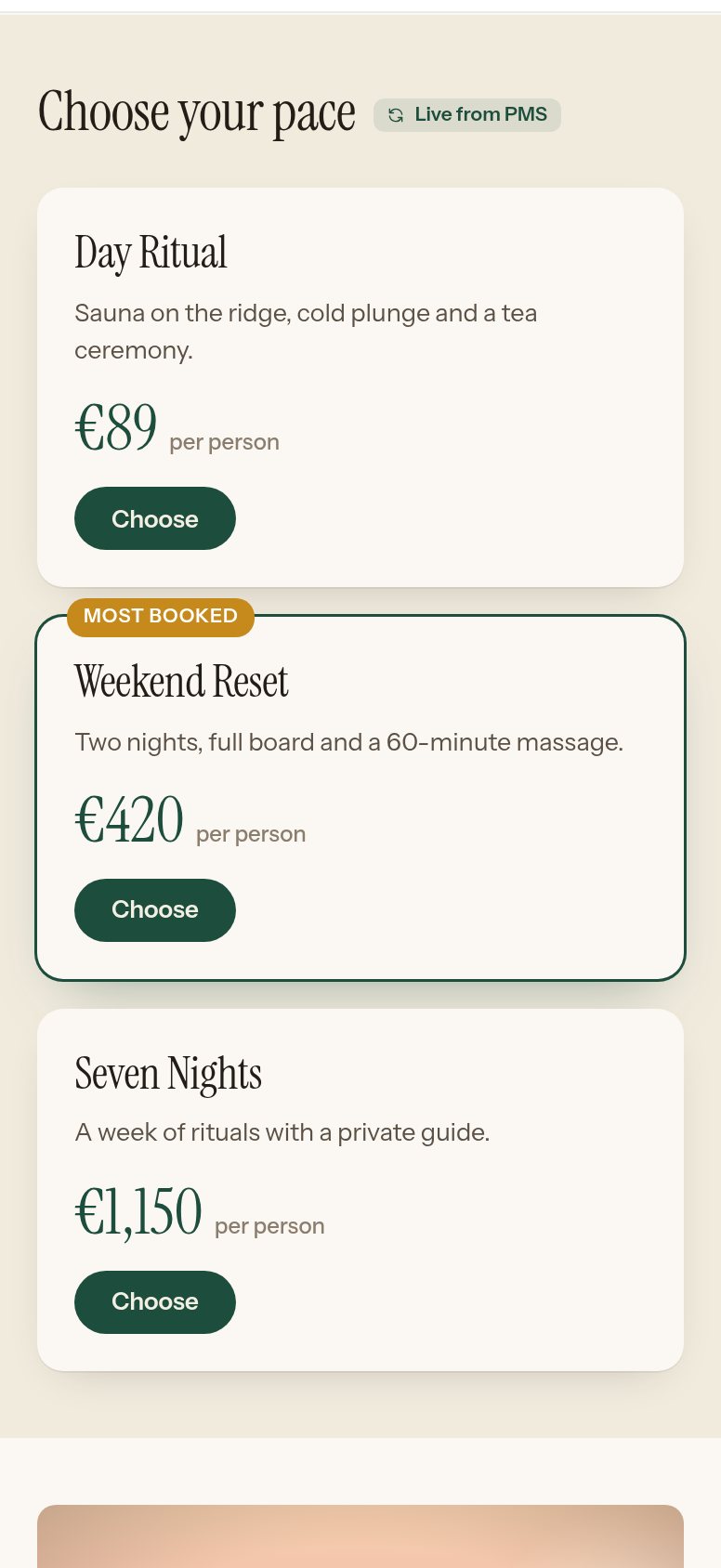
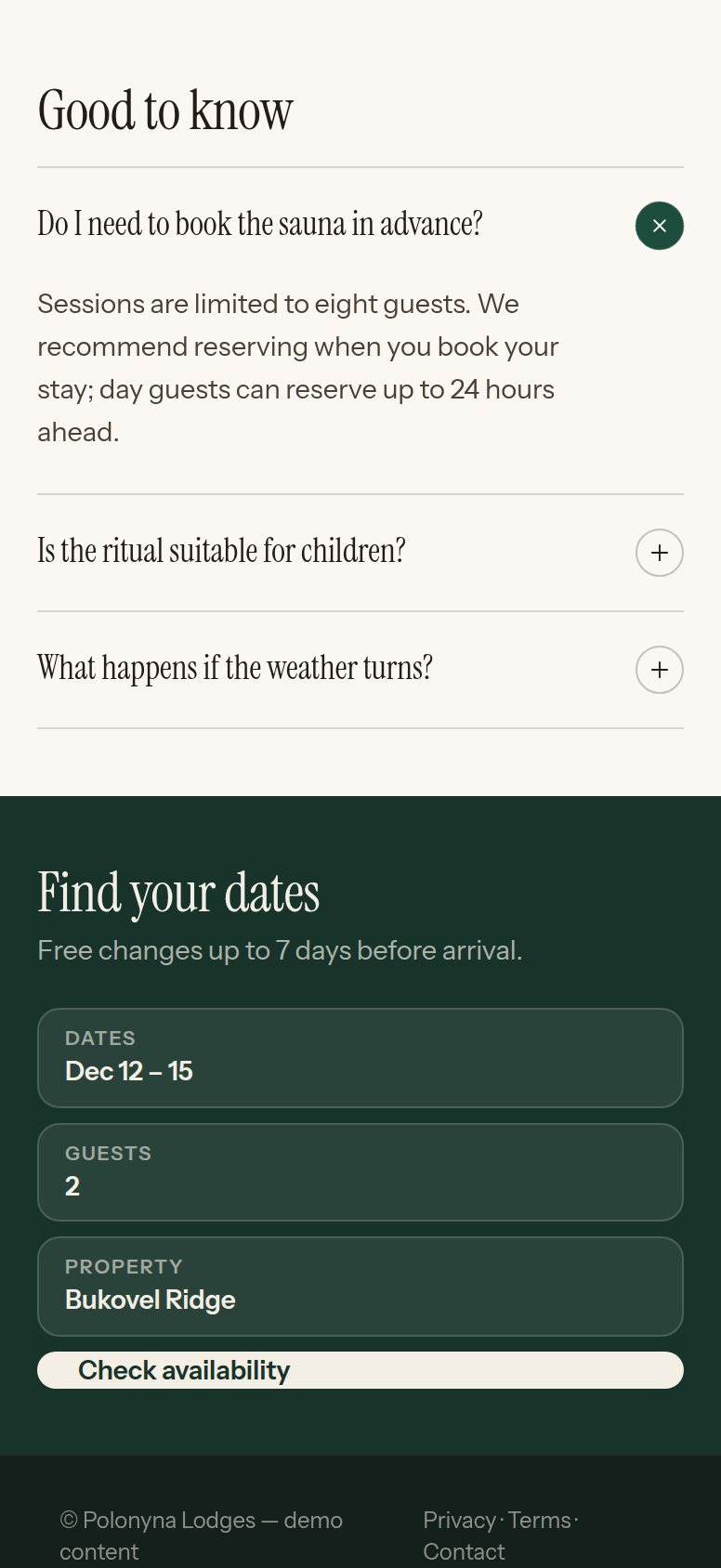
Before anything goes live the editor can see what a guest will see. The desktop, tablet and phone previews use the page’s real layout, not a picture of it, and a block can be hidden on mobile with one switch. Below: the phone preview of the same page, and the tablet preview inside the editor.

Real functionality
Everything above runs in the browser: edit a headline in place, move a block, send a page to review, press ⌘K. The interface keeps its state in your browser session and saves nothing to a server; the content in it is sample content.
The interface is built from a small set of tokens (a warm paper and graphite scale, one blue for the next action, three status colors) and every component reads them, so light and dark are the same design in two moods. The tool is set in Instrument Sans; a serif appears only inside the guest’s page, so the interface never competes with the content it edits.
- Paper#f1efe9Canvas
- Graphite#101215Rail, text
- Blue#0276d9The next action
- Live#2c8a66Published
- Review#b87e12Waiting
- Attention#c4443aLate, broken
The interface is plain HTML, CSS and JavaScript with no build step, so it opens from a folder and can be changed by anyone who can read it. The imagery is generated from a seed, the data lives in one small module, and the device preview is a container query on the page itself rather than a picture of one.
It runs on sample content held in the browser; there is no server behind it. The content model, the workflow states and the permissions are written as plain data, so a content back end can take their place: that step is outside the scope delivered here. The interactions are covered by 25 automated browser checks.
Stack
- Plain HTML, CSS and JavaScript: no framework, no build step
- CSS container queries drive the tablet and phone previews
- Procedural SVG scenes stand in for photography
- 25 automated browser checks (Playwright, Chromium)
- A working interface with eight modules, a light and a dark theme and a guided demo mode.
- 25 automated browser checks pass on the interactions: workflow, inline editing, reorder, insert, device preview, command palette, media, board, calendar and settings.
Nothing on this page is a usage result or a business metric. The names, figures and texts inside the screenshots are sample content that shows the interface at work. The facts stated about the interface are counted from its source.
Credits
- StudioDrupal Authority: content architecture, product design, editorial UX, front-end development, motion
Source of the pictures
Screenshot of the working Strata interface, captured by the studio on 2026-10-14. Names, numbers and texts in the interface are sample content.
